How to Change Your Tesla’s Sound: Lock Sound, Horn, Navigation and Engine Sound
Which Tesla sounds can you change and which can’t you? A guide to the lock sound, Boombox, pedestrian warning, navigation voice and in-cabin engine sound.
"How do I change my Tesla’s sound?" has more than one answer, because a Tesla makes five different kinds of sound and only some of them are yours to change: the lock sound, the horn, the pedestrian warning sound, the navigation and system chimes, and the engine sound you might want to hear inside the cabin. Here is what can be changed, what cannot, and how.
Quick overview
| Sound | Can you change it? | How |
|---|---|---|
| Lock sound | Yes (compatible cars) | USB drive + LockChime.wav + Toybox/Boombox |
| Horn and Boombox sounds | Yes, while parked | Toybox → Boombox |
| Pedestrian warning sound | No | Fixed by regulation |
| Navigation voice and system chimes | Generally no | Tesla changes them via software updates |
| Engine sound inside the cabin | Yes | Browser-based web app (see below) |
1. Lock sound
You can replace the short chime when the car locks with your own sound. It needs a car with an external pedestrian warning speaker (PWS) and reasonably recent software. Full walkthrough: how to set a custom Tesla lock sound.
2. Horn and Boombox
The Boombox in the Toybox menu can play the horn and various sounds outside the car while it is parked. Playing sounds outside while driving was disabled after a safety recall in the US, so don’t expect it to work on the move. Menu names and locations can vary by software version and model.
3. Pedestrian warning sound
Electric cars must be audible to pedestrians at low speed. The sound is defined by the manufacturer and cannot be changed by the owner. See what is AVAS.
4. Navigation voice and system sounds
We did not find a user-facing option to choose the navigation voice or chimes. Some owners report that the navigation voice sounds different on newer cars; that appears to be a software change by Tesla rather than a setting you can pick. You can choose the interface and voice command language in the display settings.
5. Engine sound inside the cabin
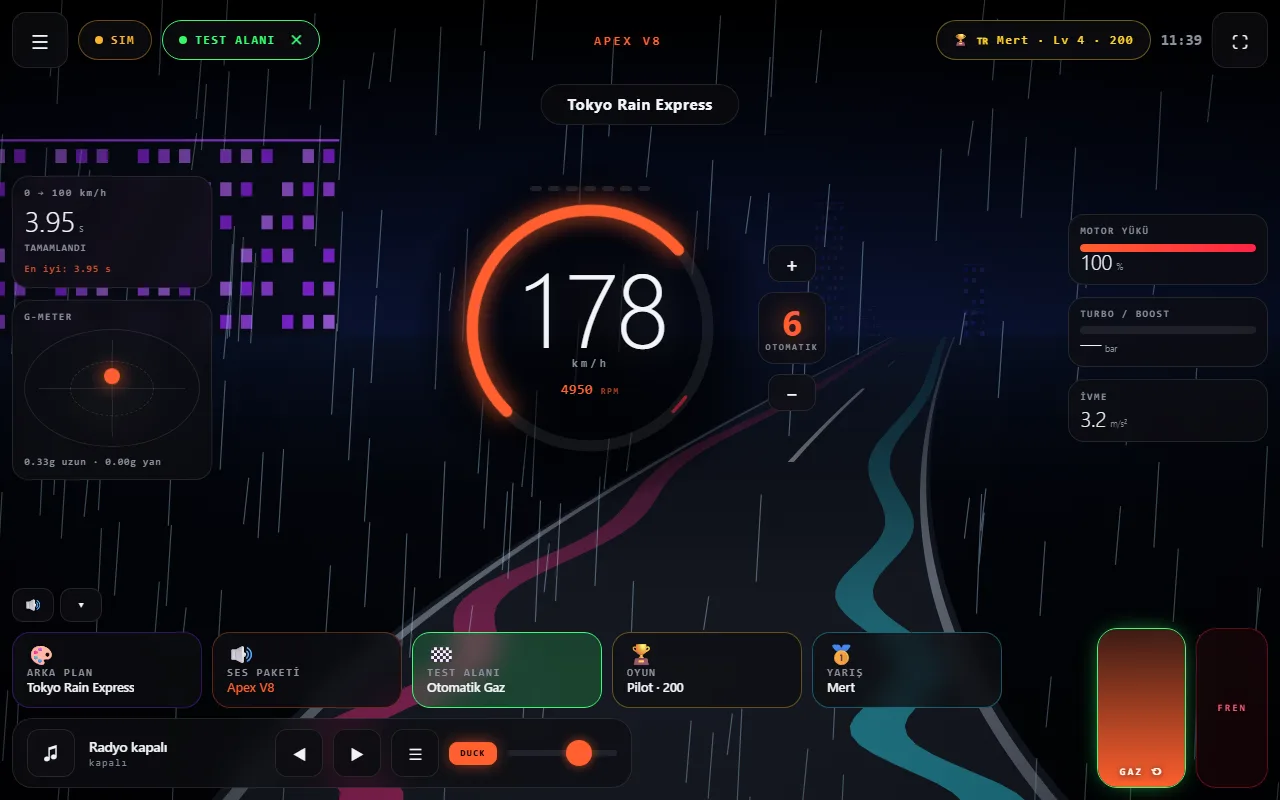
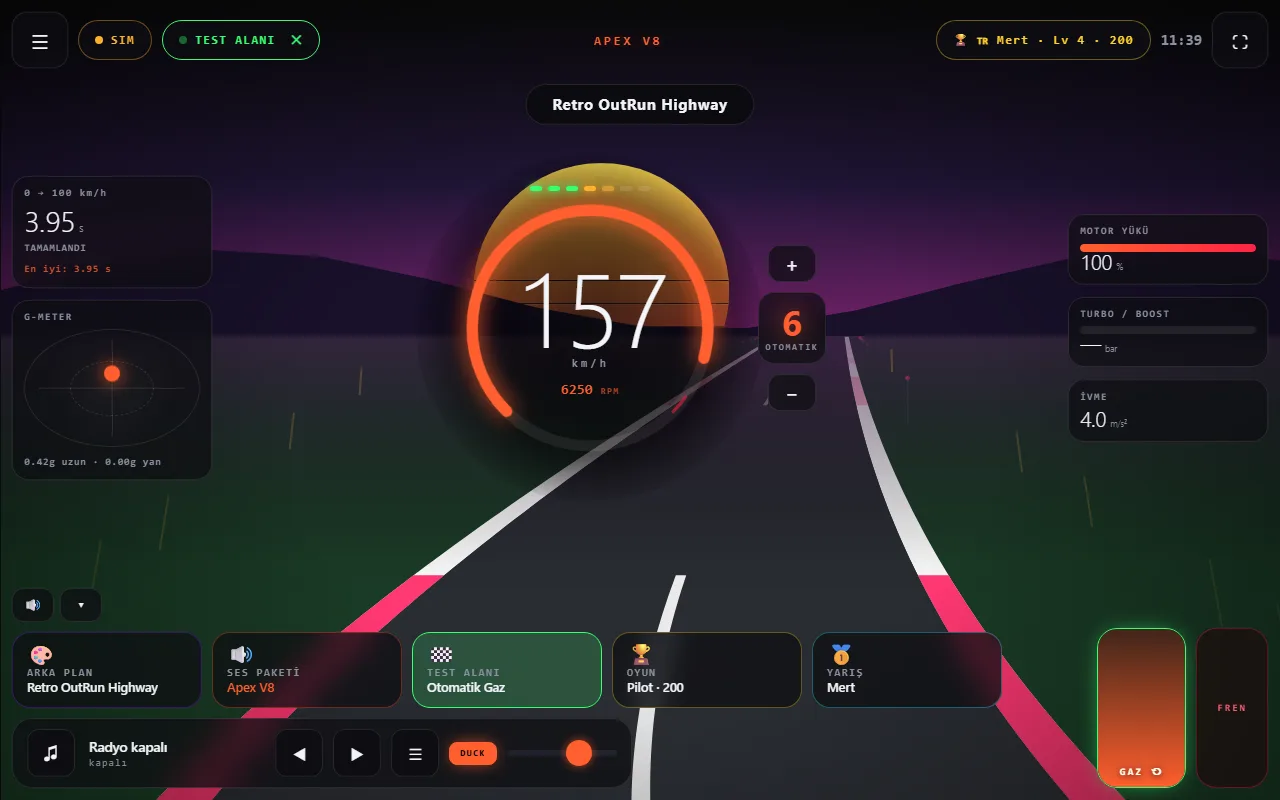
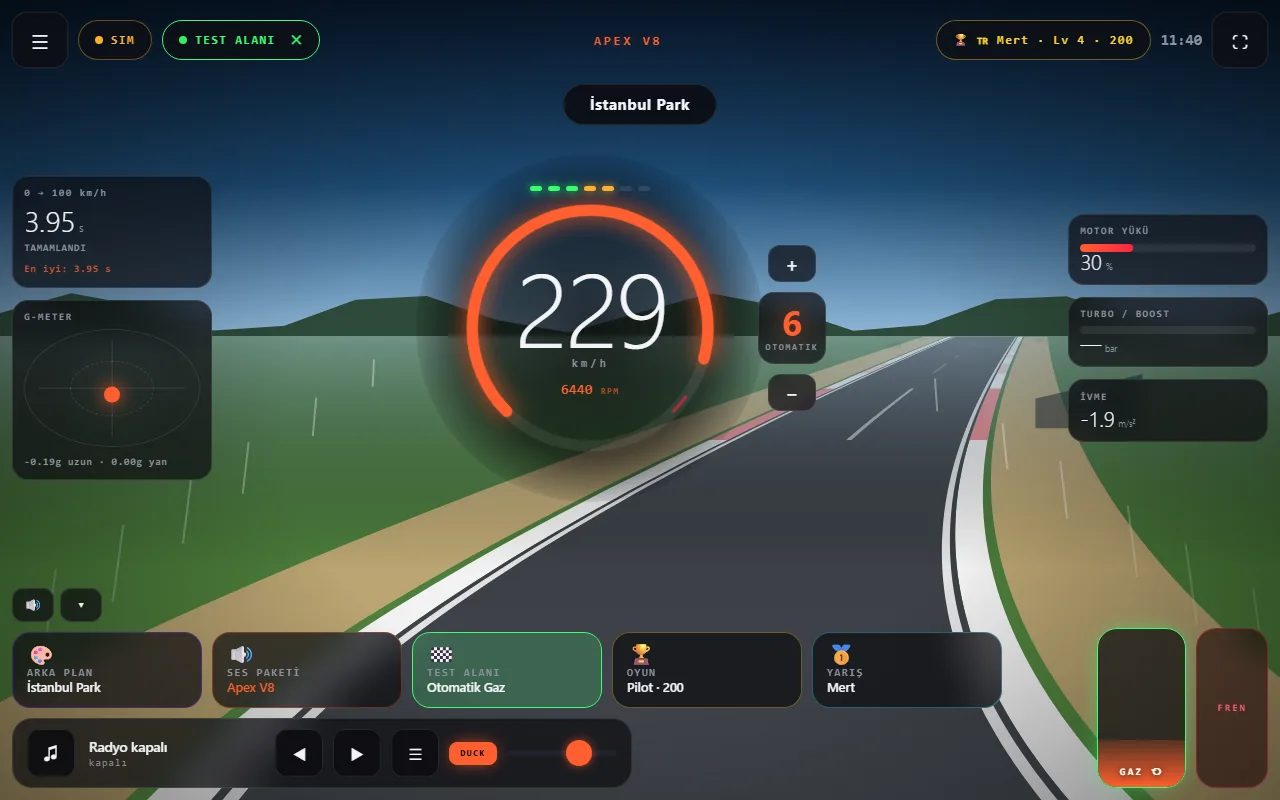
The most-asked-for "Tesla sound" is really the lack of an engine sound. If you want a V8, GTR or rally engine inside the cabin, you don’t need hardware: Wind Asist Drive is a free web app that opens in the car’s browser. It reads speed from GPS, works out RPM and gear, and synthesizes the sound in real time through the car’s own speakers. It does not touch the external warning sound, it plays inside the cabin only.
- Open
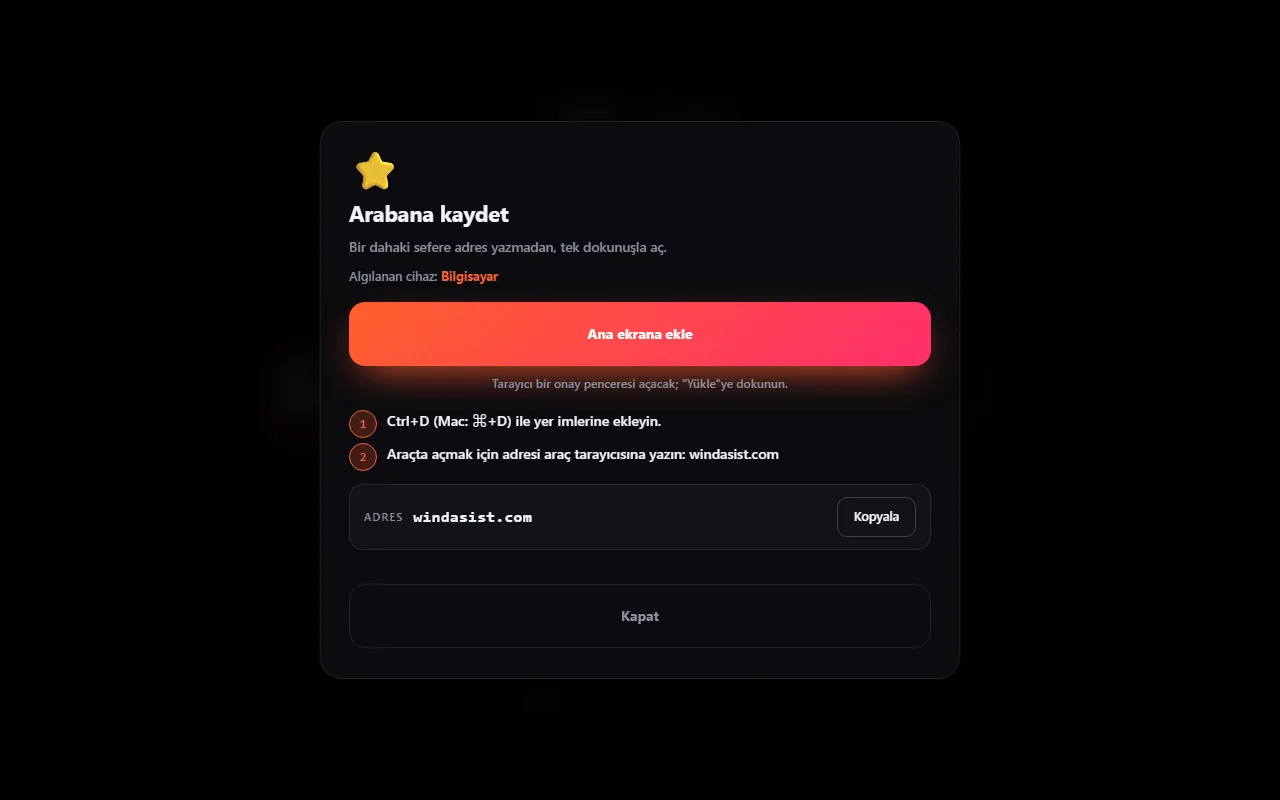
windasist.comin the Tesla browser. - Pick a sound pack and start mode, then tap START ENGINE.
- Allow location access; speed now comes from the car.
More: add engine sound to an electric car.
From drivers: people trying it in their cars
Two drivers tried Wind Asist Drive in their Tesla’s browser and filmed it. The videos are embedded from Instagram and belong to their respective accounts.
@safak.tozar — Watch on Instagram ↗ · @elektrikligurme — Watch on Instagram ↗
Frequently asked questions
Can I change my Tesla’s lock sound?
Yes, on compatible cars. Put a .wav file named LockChime in the root of a USB drive and enable Lock Sound under Boombox in the Toybox menu. The car needs an external pedestrian warning speaker and reasonably recent software.
Can I change the Tesla navigation voice?
We did not find a user-facing option to pick a different navigation voice. It changes with Tesla software updates. You can choose the interface and voice command language in settings.
How do I add an engine sound to a Tesla?
Open windasist.com in the car’s browser. The app reads speed from GPS and generates the engine sound in real time through the car’s speakers, with no hardware, cables or OBD adapter.
Can I change the pedestrian warning sound?
No. The low-speed warning sound heard outside the car is set by the manufacturer to meet regulations and cannot be changed by the owner.